
Meet SENS — the knob that makes your kit feel right
SENS reshapes the velocity curve on each drum channel of the Beat Studio mixer — boost ghost notes, tame hot pads, and dial in how every drum feels.
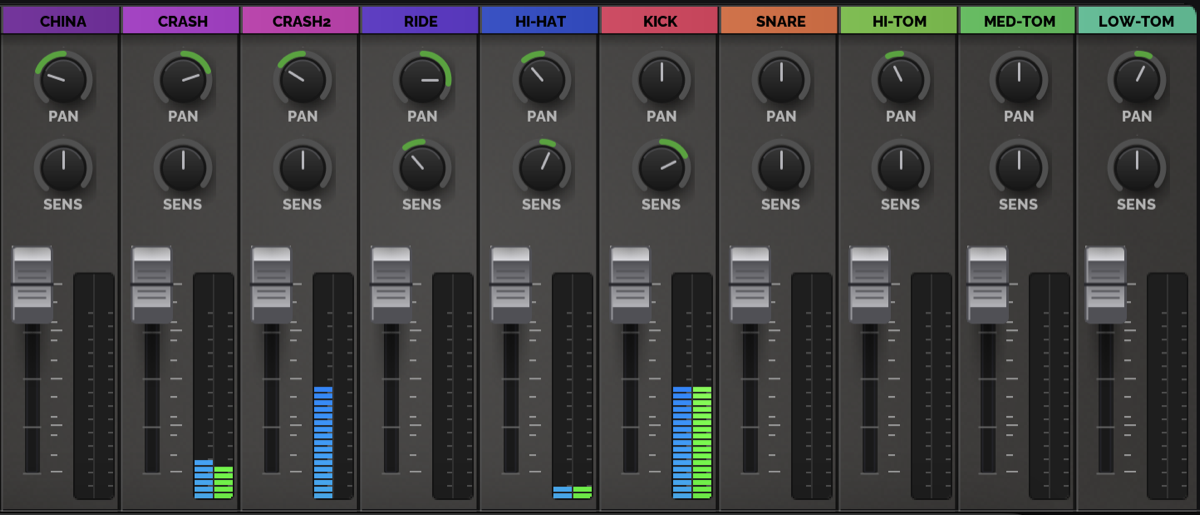
If you’ve ever sat down at an electronic kit and thought “my kick is too quiet no matter how hard I stomp” or “the snare jumps from a whisper to a cannon shot with nothing in between” — you already know why the SENS knob exists.
SENS — short for sensitivity — lives on every drum channel in the Beat Studio mixer, right next to PAN. It’s small, it’s quiet, and it changes everything about how your kit feels under the sticks.
What does SENS actually do?
SENS reshapes the velocity curve for a single drum channel. When you hit a pad, your drum module sends a MIDI velocity value between 1 and 127. SENS takes that number and bends it — making soft hits louder, making loud hits softer, or anything in between — before the sound ever reaches the audio engine.
Think of it like this: the pad measures how hard you hit, but SENS decides how that hit is expressed.
- Knob at 12 o’clock (default, 0): A natural, slightly weighted response. Soft hits stay soft, hard hits stay hard. This is what most players want most of the time.
- Knob turned right (positive, up to +100): More sensitive. Soft hits get lifted up more than hard hits, so the quiet end of your playing actually shows up in the sound.
- Knob turned left (negative, down to -100): Less sensitive. Soft hits stay quiet, and you need to dig in to get the big sound. Perfect for adding dynamic range or taming a pad that triggers too hot.
It’s per-channel, so your kick can be set wide open while your hi-hat stays mellow. Each drum gets its own personality.
What about my drum module’s settings?
Most drum modules have their own per-pad sensitivity controls buried somewhere in a menu. You don’t need to touch them. SENS does the same job from the Beat Studio mixer — same screen as everything else, no scrolling through module menus, and your settings save with Beat Studio instead of being locked to one piece of hardware.
Why you’ll reach for it more than you’d expect
Every electronic drum kit has quirks. Maybe one pad on your kit feels totally different from the rest because it’s rubber and the others are mesh. Maybe one cymbal triggers on the lightest brush while the others need a real swing. Maybe you’re playing late at night and you want every soft tap to feel rewarding.
Here are the moments where SENS earns its keep:
- Weak kick pedal? Push the kick channel’s SENS to the right. Suddenly the heel-toe ghost notes you’ve been working on actually exist in the mix.
- Snare too aggressive? Nudge SENS to the left. You get that satisfying gap between a rimshot and a rolled ghost note instead of one wall of sound.
- Hi-hat too bright? A small left turn smooths out the dynamic range — closer to how a real hat reacts.
- Playing for feel, not volume? Push every channel slightly right. Even practice-pad-quiet hits feel responsive and alive.
The best part: this happens upstream of everything else — training mode, recording, the metronome mix, audio effects. You’re not just changing what you hear; you’re changing what the whole app sees. A ghost note you couldn’t trigger before is now a real, recorded, scored hit.
Saving your setup
SENS settings save automatically with your other mixer preferences (PAN, volume, reverb send), so once you’ve dialed in your kit, it’s there waiting next time you open Beat Studio.
A word on Core vs. Pro
SENS is part of the Core mixer feature set. FREE users can see the knob — it’s disabled, with a tooltip explaining how to unlock it — and Core and Pro users get the full per-channel control.
Try this right now
- Open the mixer.
- Find the kick channel.
- Hit your kick pedal as softly as you can. Listen.
- Drag the kick’s SENS knob halfway to the right.
- Hit it just as softly. Smile.
That’s SENS. One small knob, one big difference in how your kit feels.
Happy drumming.